Team Workload & Task Audit Matrix
Analyze per-employee SLA performance, risk flags, and full task lifecycle histories on the Team Workload page (/analytics).
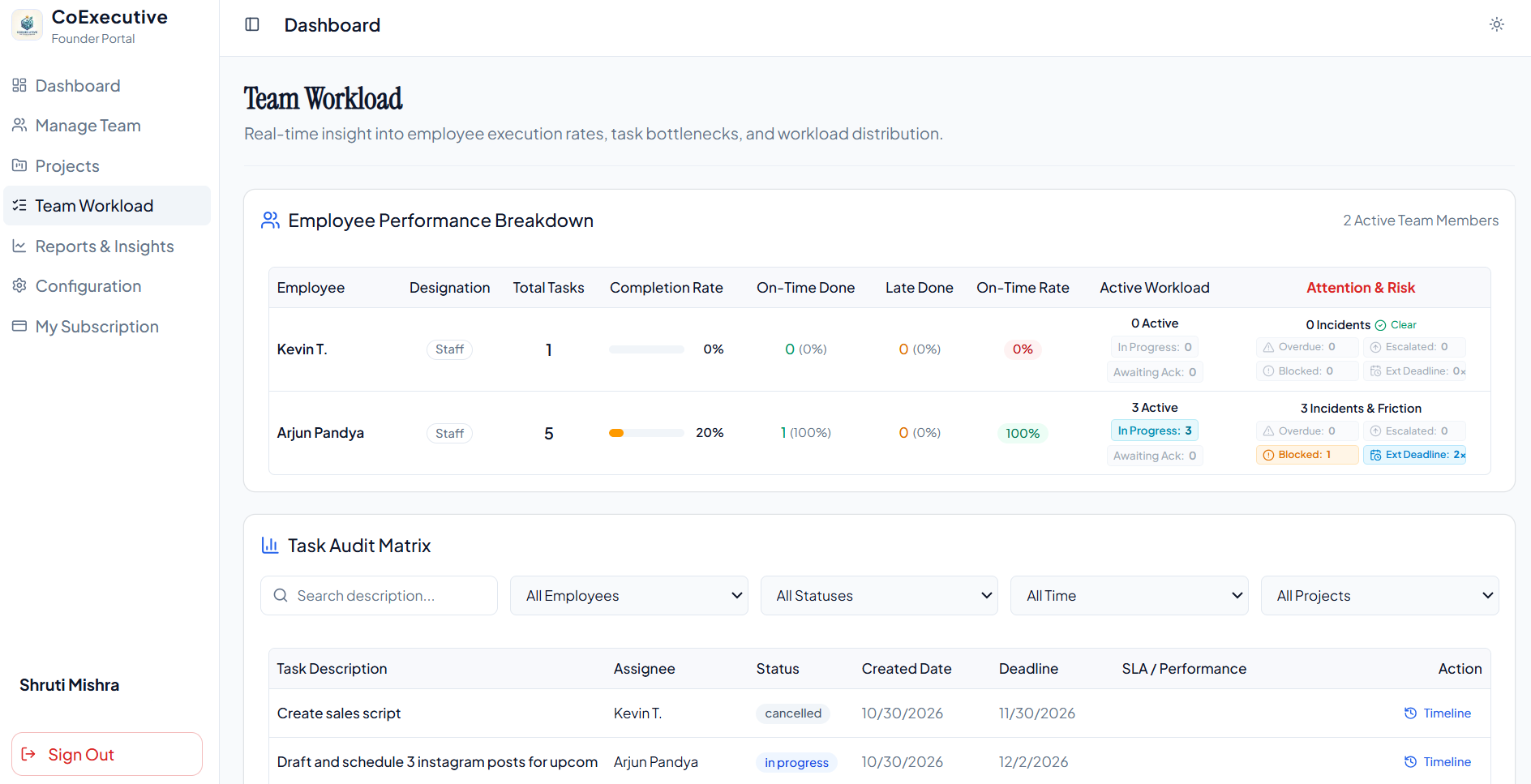
The Team Workload (/analytics) page gives you deep operational accountability across every employee and every task assigned in your company. It is divided into two core sections: the Employee Workload & SLA Breakdown and the filterable Task Audit Matrix.
1. Employee Workload & Accountability Metrics
At the top of Team Workload (/analytics), CoExecutive calculates real-time performance indicators for every team member across all assigned tasks:
- Total Assigned & Completed: Total tasks delegated to the employee vs. tasks marked Done.
- On-Time Rate vs. Late Rate:
- Completed On-Time: Tasks marked Done on or before their scheduled deadline.
- Completed Late: Tasks marked Done after the deadline had already passed.
- Active Workload (
Active Total): Sum of tasks currentlyIn Progress / AcknowledgedandAwaiting Acknowledgement. - At-Risk Indicators (
Risk Total): Highlights bottlenecks per employee by summing:- 🔴 Overdue Tasks
- 🚨 Escalated Tasks
- 🚧 Blocked Tasks
- 📅 Deadline Extensions (total number of times deadlines were extended across the employee's tasks)
2. The Filterable Task Audit Matrix
Below the employee breakdown, the Task Audit Matrix lets you search, filter, and audit every individual task in your workspace using five controls:
- Search Bar: Instant keyword search across task descriptions.
- Status Filter: Filter by
All,In Progress / Acknowledged,Awaiting Acknowledgement,Completed,Blocked,Escalated, orOverdue. - Employee Filter: Isolate tasks belonging to a single team member.
- Project Filter: Isolate tasks under
Generalor any custom project. - Date Range Filter: Switch between
All Time,Today,This Week,This Month, or aCustomstart and end date range.
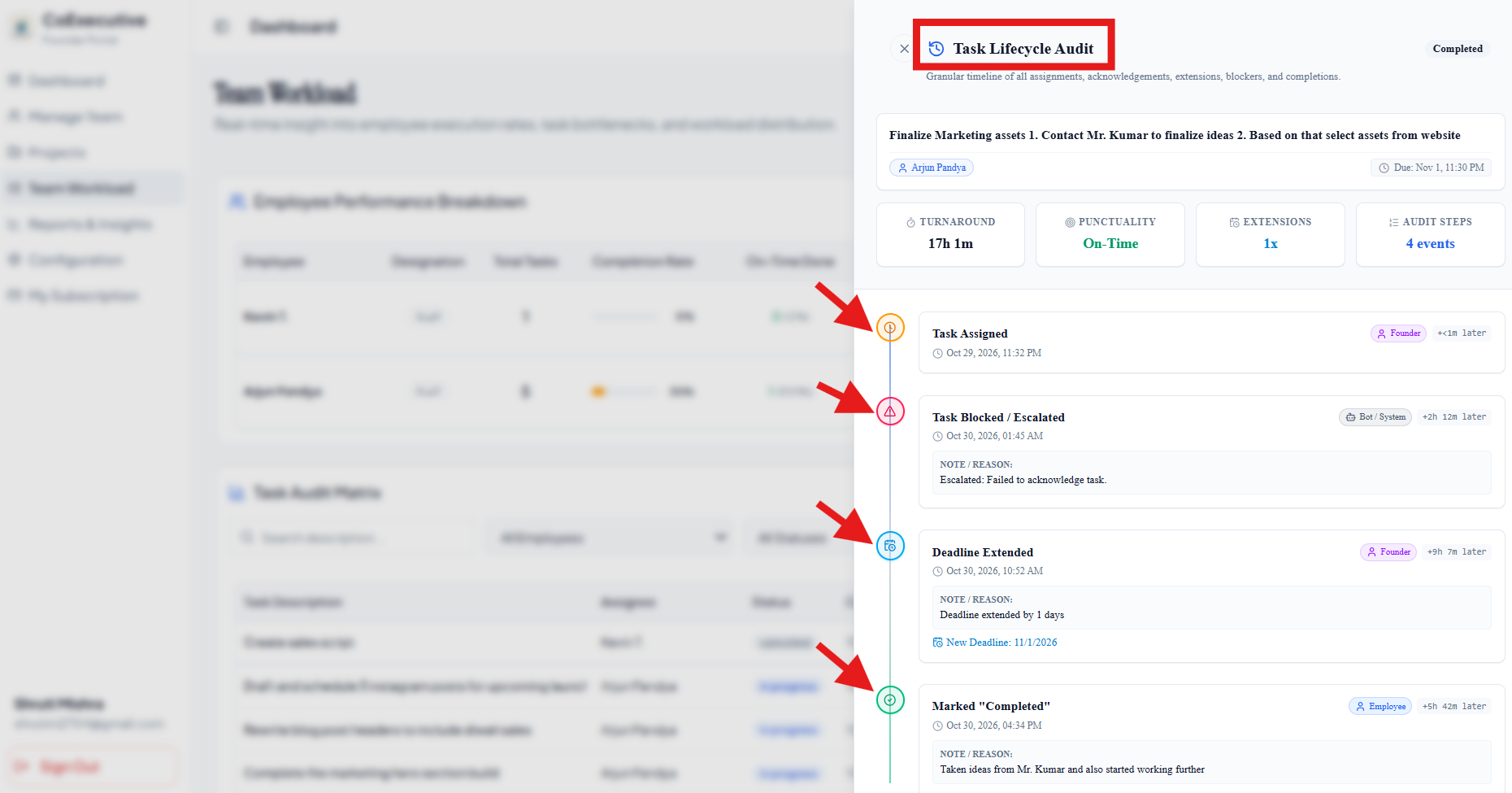
3. Task History Drawer & SLA Badges (TaskHistoryDrawer)
Click the History / Timeline action on any row in the Task Audit Matrix to slide open the Task History Drawer:
- SLA Badges (
TaskSlaBadges): Displays whether the task was delivered On-Time, Completed Late, had Deadline Extensions, or experienced an Acknowledgement Escalation. - Chronological Event Timeline: Shows the exact timestamped audit log of every event in the task's lifecycle—from initial WhatsApp dispatch and acknowledgement reminders to employee check-in updates, blocker notes, deadline extensions, and final completion.