
Step 3: Organizing Work with Projects
Every workspace starts with a ready-to-use General project. Create custom projects anytime from the web portal or directly from WhatsApp.
Every task in CoExecutive belongs to a Project so you can group deliverables by client, department, or initiative.
The “General” Project Is Ready Out of the Box
Every new company account comes with a pre-created General project automatically. You can start assigning tasks under General immediately—creating custom projects is completely optional.
When to Create Custom Projects
While day-to-day operational tasks fit naturally under General, creating dedicated projects is helpful when you want to track:
- Client Deliverables (e.g., Acme Website Redesign, Q3 Audit — FinCorp)
- Company Initiatives (e.g., Diwali Campaign, Warehouse Expansion)
- Departmental Backlogs (e.g., Finance & Compliance, Vendor Onboarding)
Creating a Project in the Web Portal
Open Projects
Navigate to Projects (/projects) from the left sidebar in the Founder Web Portal.
Click “New Project”
Click the New Project button in the top-right corner.
Enter the Project Name
Type a clear, concise Project Name (keep it succinct so it is easy to scan inside WhatsApp dropdown lists) and click Create.
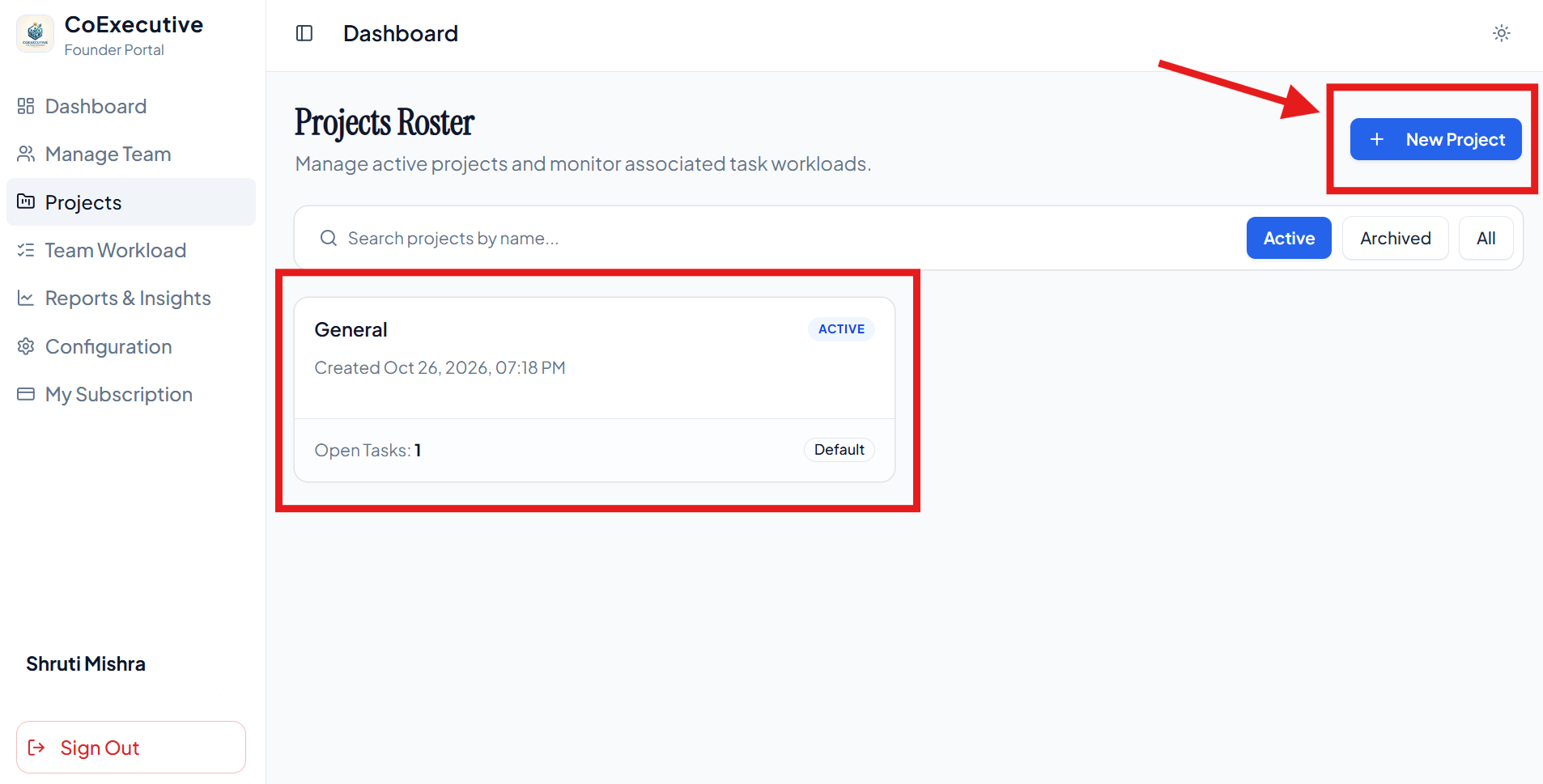
Creating a Project Directly from WhatsApp
You can also create new projects on the go without opening the web portal:
- Open your chat with the CoExecutive WhatsApp Agent and open the Founder Menu.
- Select
6️⃣ Projectsto view your active projects list and open task counts. - Reply with
create project <Name>(for example,create project Q4 Marketing). - The project is created immediately and becomes selectable the next time you assign a task.
6️⃣ Projects
Active Projects 📁:
- 📂 General (1 open task)
To create a new project, reply with: create project <Name> (e.g., create project Q4 Marketing)
create project Q4 Marketing
✅ Project 'Q4 Marketing' created successfully!
You can now select it when assigning tasks.
Filtering & Archiving Projects
On the Projects (/projects) page, you can filter your workspace view using three status tabs:
- Active — Projects currently open for new task assignments on WhatsApp.
- Archived — Completed projects hidden from the WhatsApp assignment dropdown while preserving all historical tasks and reports.
- All — Combined view of both active and archived projects.
Step 4: Configuring Working Hours & Reminders
Review and customize your company working hours, automated check-in times, and acknowledgement escalation rules.
Set your working days, morning briefing time, employee check-in schedule, and escalation thresholds.
Step 2: Adding Your Team Members
Add employees individually, organize departments, or bulk-import your team roster via Excel or CSV in the Founder Web Portal.
Step 4: Configuring Working Hours & Reminders
Customize your company timezone, working days, founder briefings, employee check-in times, and acknowledgement reminder rules.