
Step 4: Configuring Working Hours & Reminders
Customize your company timezone, working days, founder briefings, employee check-in times, and acknowledgement reminder rules.
CoExecutive comes pre-configured with sensible defaults so you can delegate tasks right away. Whenever you want to tailor when the CoExecutive WhatsApp Agent nudges your team or sends your executive summaries, open Configuration (/company-configurations) in the Founder Web Portal.
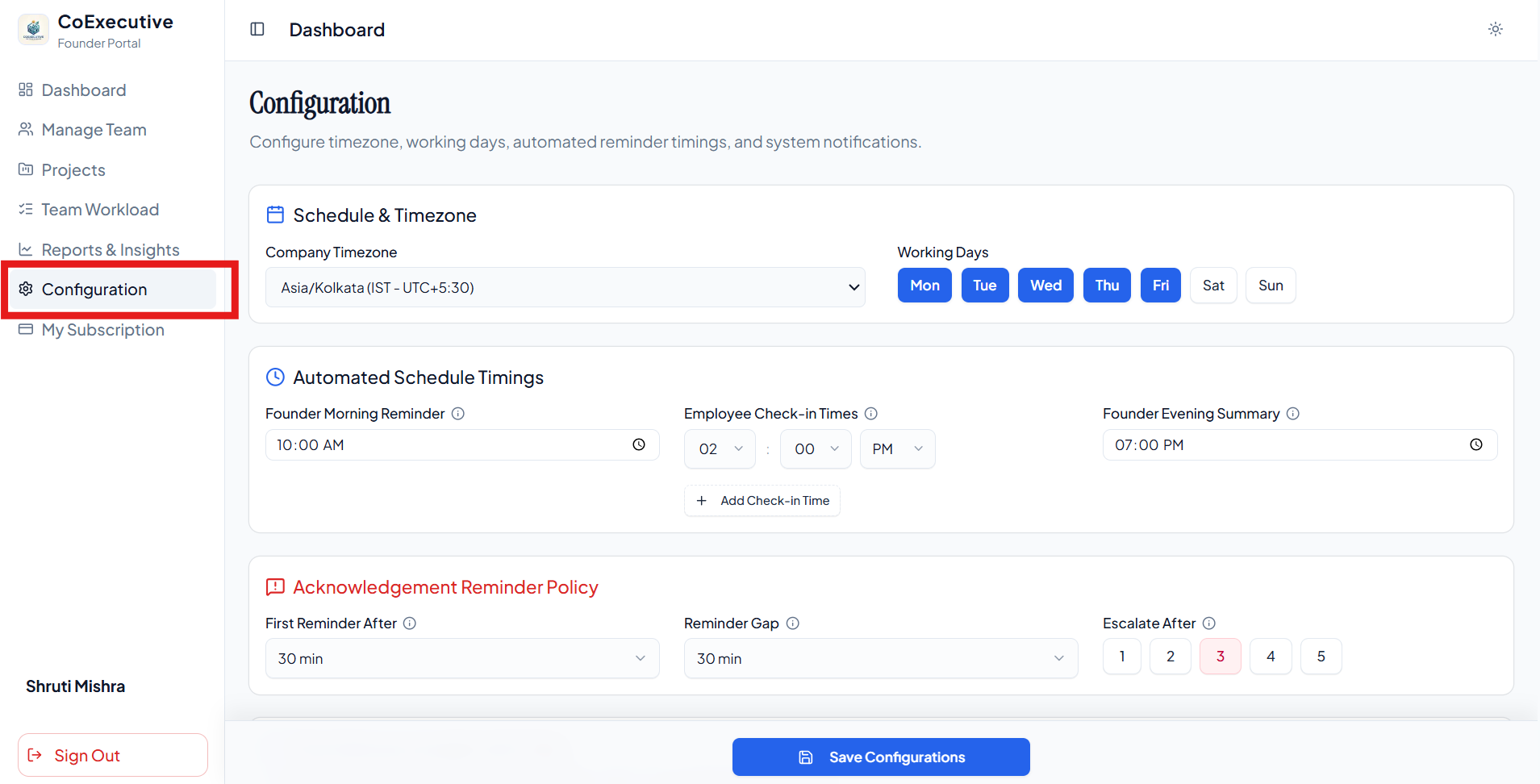
1. Timezone & Working Days
All scheduled reminders, check-ins, and reports follow your company schedule:
- Timezone: Select your organization's operating timezone (defaults to
Asia/Kolkata(IST), configurable from the timezone selector). - Working Days: Toggle any combination of
Mon,Tue,Wed,Thu,Fri,Sat, andSunpills.- Automated check-ins and morning/evening briefings run only on active working days, ensuring your team is never disturbed on off-days.
2. Daily Schedule & Check-in Times
Control the daily rhythm of WhatsApp touchpoints for both you and your team:
| Setting | Default | Configurable Behavior |
|---|---|---|
| Founder Morning Reminder | 10:00 AM | Fully configurable. Sends you a morning WhatsApp prompt summarizing the day's focus with quick actions to Assign Tasks, View Pending, or Skip. |
| Employee Check-in Times | 02:00 PM | Add up to 5 scheduled check-in times per day (defaults to 02:00 PM). At each configured slot, the WhatsApp Agent prompts employees who have active tasks to submit a quick status update. |
| Founder Evening Summary | 07:00 PM | Fully configurable. Delivers an end-of-day wrap-up on WhatsApp covering tasks completed today, tasks still pending, and any open blockers. |
3. Acknowledgement Reminder & Escalation Policy
When you assign a task, the employee receives a WhatsApp notification with an Acknowledge button. You have full control over how CoExecutive follows up if an employee has not tapped Acknowledge:
First Reminder After
Configure how many minutes CoExecutive waits after task dispatch before sending the first acknowledgement nudge to the employee.
Reminder Gap (Default: 120 minutes)
Configure the interval (in minutes) between subsequent acknowledgement reminders if the task remains unacknowledged.
Escalate After (Default: 3 reminders)
Configure the maximum number of unanswered acknowledgement reminders before the CoExecutive WhatsApp Agent automatically escalates the unacknowledged task back to the founder.
4. Task Slots per Assignment Form
- Task Slots (
1–10, Default:10): Controls how many task entry slots appear in a single interactive WhatsApp Assign Tasks form. By default, all10slots are available so you can batch-assign up to 10 tasks in one sitting (any blank slots are ignored automatically), or you can lower the count anytime between1and10.
5. Automated Executive Reports
At the bottom of Configuration (/company-configurations), you can enable or customize automated executive summaries delivered straight to your WhatsApp and showed in Reports (/reports):
- Daily Executive Summary — End-of-day completion and blocker digest.
- Weekly Report Generation — Week-over-week team throughput, on-time completion rate, and employee accountability breakdown.
- Monthly Report Generation — High-level monthly operational rollup across all projects and departments.
Step 5: Assigning Your First Task on WhatsApp
You are ready to delegate your first real task on WhatsApp!
Open the Founder Menu on WhatsApp, fill out the interactive task assignment form, and track live status.
Step 3: Organizing Work with Projects
Every workspace starts with a ready-to-use General project. Create custom projects anytime from the web portal or directly from WhatsApp.
Step 5: Assigning Your First Task on WhatsApp
Delegate tasks in seconds using the interactive Assign Tasks form inside the CoExecutive WhatsApp Agent.