
Step 2: Adding Your Team Members
Add employees individually, organize departments, or bulk-import your team roster via Excel or CSV in the Founder Web Portal.
CoExecutive routes tasks and follow-ups to your staff using their WhatsApp phone numbers. Your employees never need to sign up or install an app—as soon as you add them to Manage Team (/employees), they appear in your WhatsApp task assignment form.
Adding a Single Team Member
To add an individual employee from the Founder Web Portal:
Open Manage Team
Sign in to the web portal and click Manage Team (/employees) in the left sidebar.
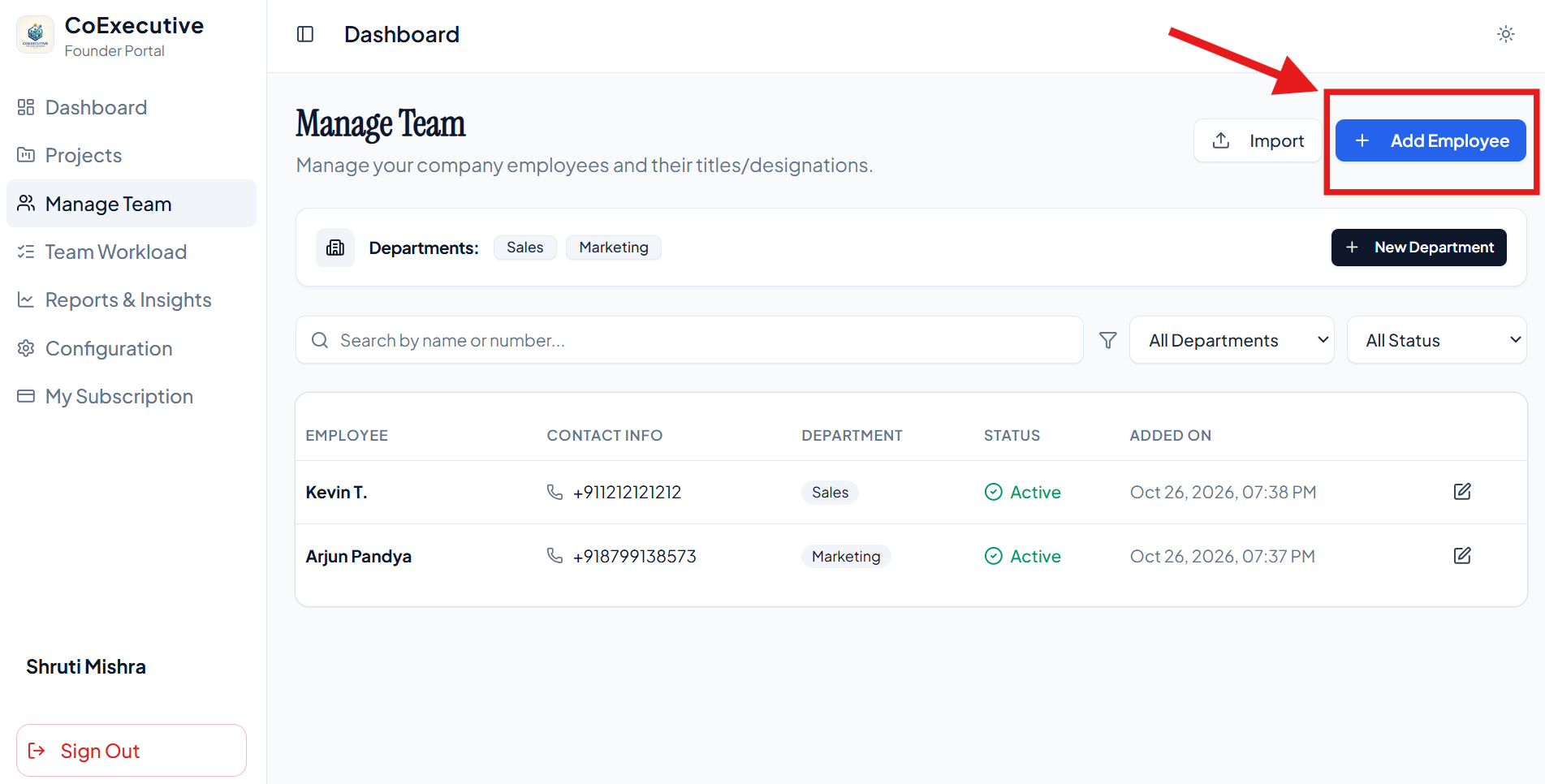
Click “Add Employee”
Click the Add Employee button in the top-right corner to open the team member modal.
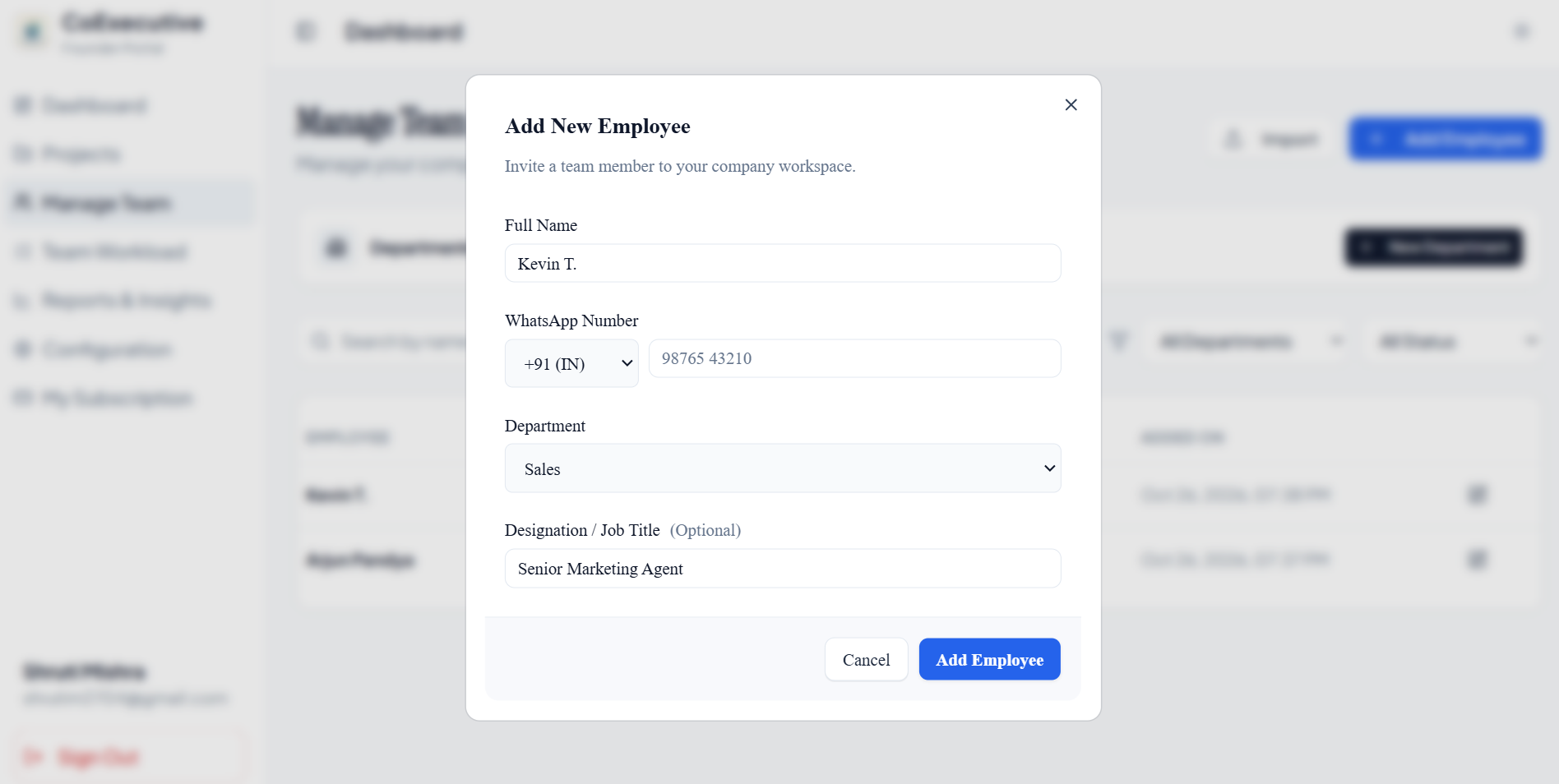
Fill Out the Employee Details
Enter the four core fields for your team member:
- Full Name (Required) — The name displayed in your WhatsApp assignment dropdowns and reports (e.g.,
Priya Nair). - WhatsApp Number (Required) — The employee's active WhatsApp phone number with country code (e.g.,
+91 98765 43210). - Department (Optional) — Select an existing department (e.g., Operations, Sales, Engineering) or create one using the Department Manager.
- Designation (Optional) — The employee's role or job title (e.g., Operations Lead).
Save the Employee
Click Save. The employee is immediately active and selectable inside the Assign Tasks form on WhatsApp.
Bulk Importing Employees (CSV / Excel)
If you are onboarding a larger team, you can upload your entire roster at once:
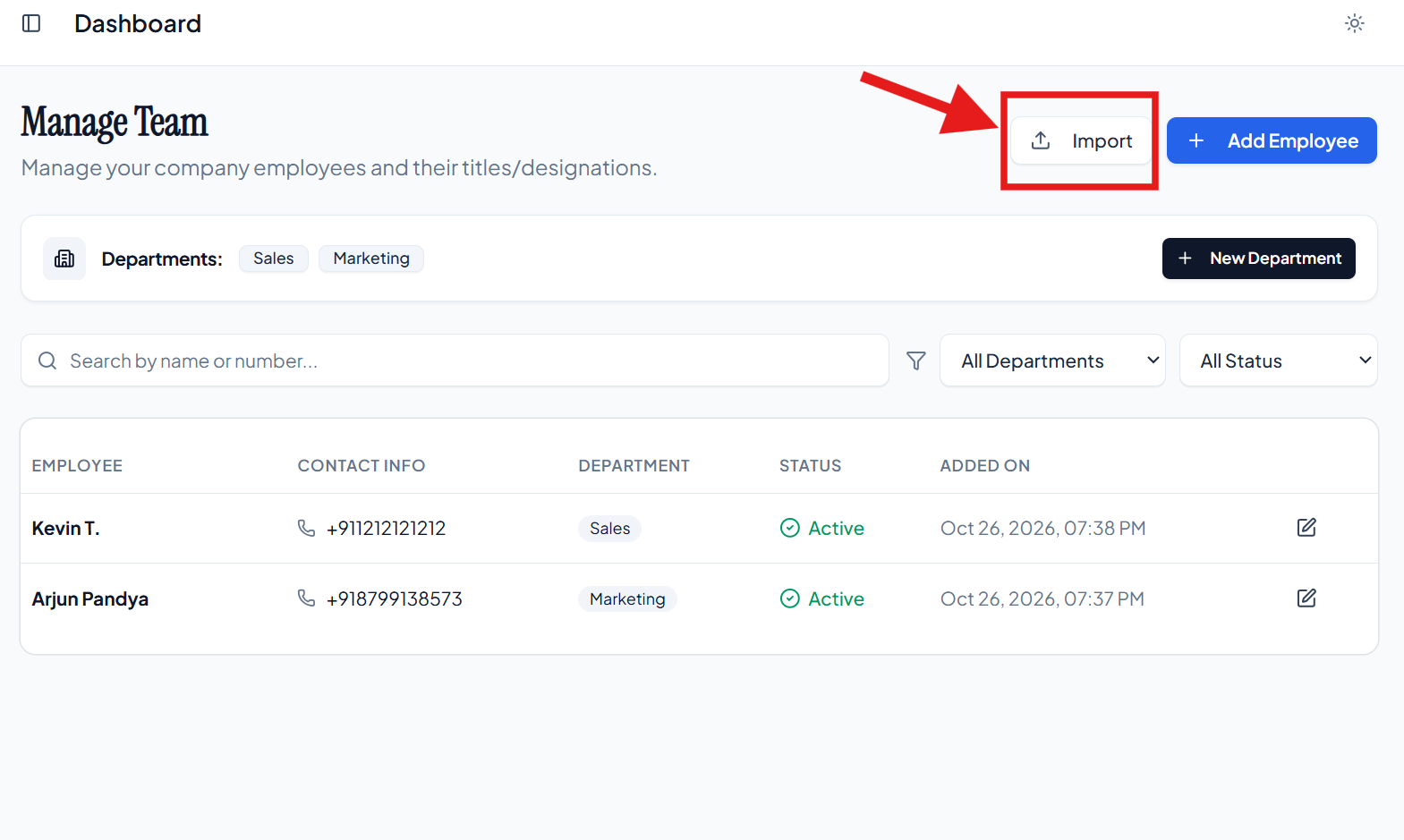
- On the Manage Team (
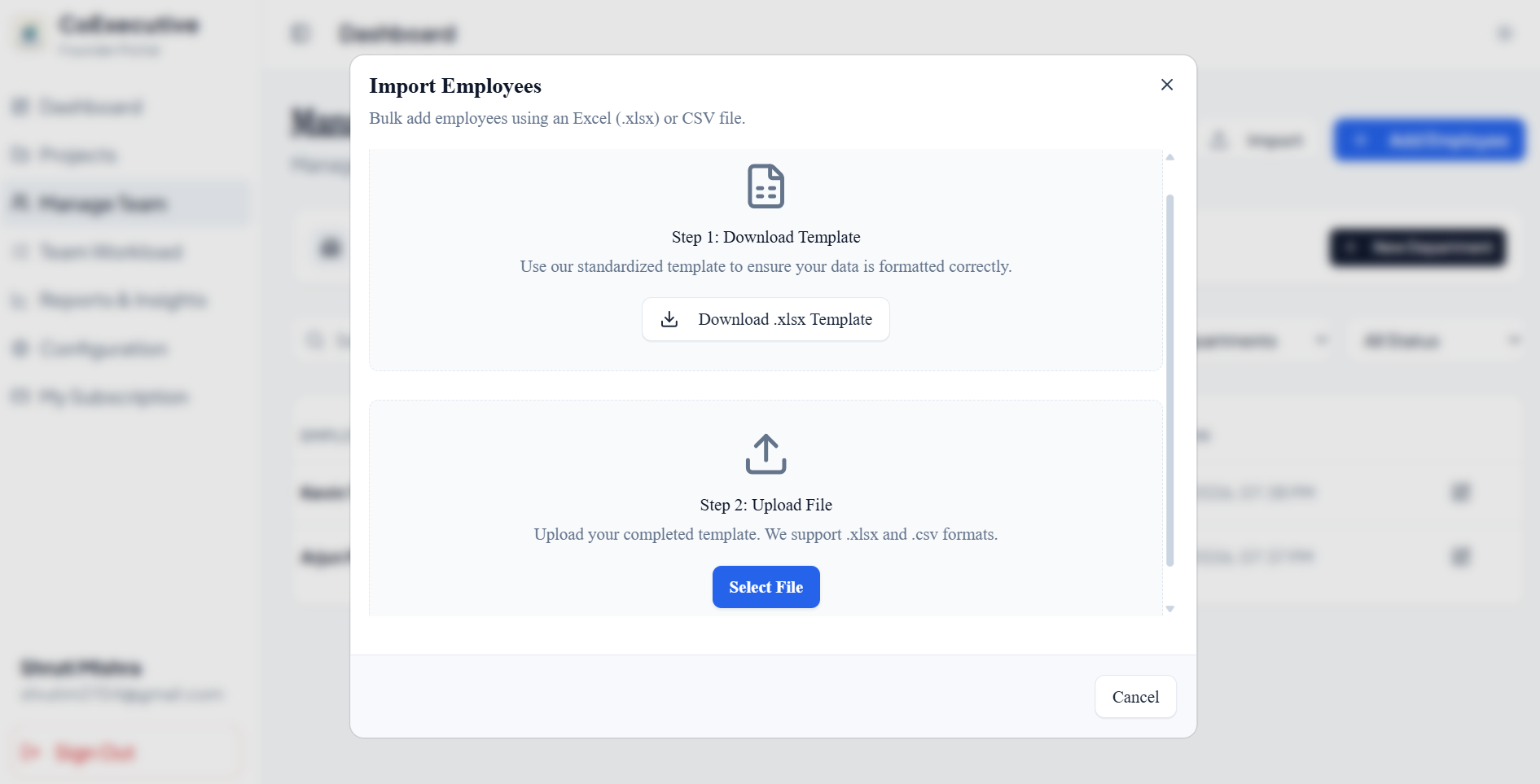
/employees) page, click Import. - Download the sample Excel template from the import dialog to match the expected column headers (
Full Name,WhatsApp Number,Department,Designation). - Upload your completed
.xlsxfile. - Review the parsed preview table—CoExecutive automatically validates phone number formatting and highlights any duplicate numbers before you confirm the import.
Managing Departments
Grouping employees by department makes it easy to filter performance metrics, attendance responsiveness, and task load in the portal:
- Click Departments on the Manage Team (
/employees) page to open the Department Manager. - Add new department names, rename existing ones, or remove unused departments.
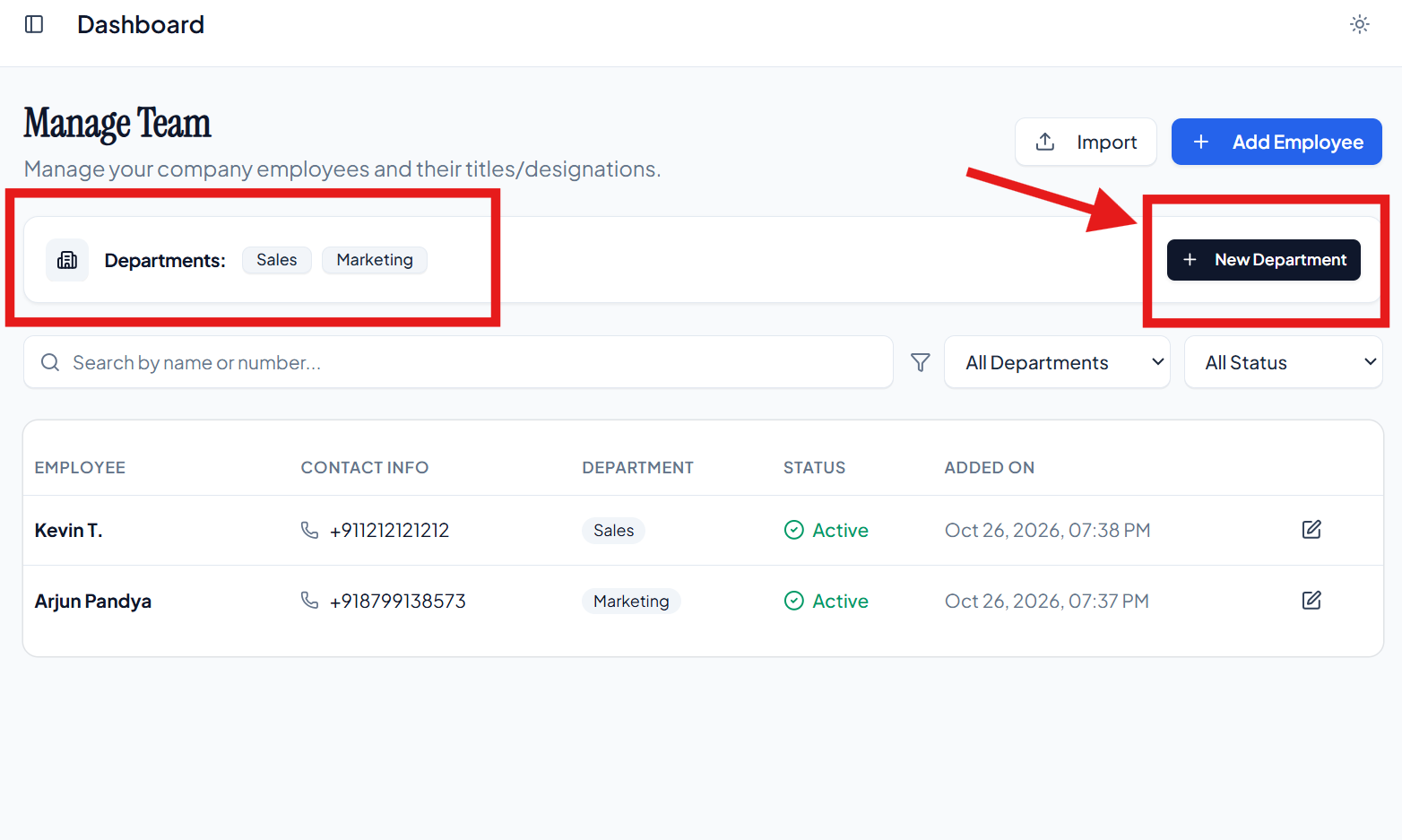
Share the Employee Guide With Your Team
Before you assign your first task to a new team member, we recommend forwarding them our short Employee Guide on WhatsApp so they know what to expect when the CoExecutive WhatsApp Agent messages them.
Step 3: Organizing Work with Projects
Learn how CoExecutive organizes tasks under your default General project and how to add custom projects when needed.
Use the built-in General project right away or create custom projects for workstreams and clients.
Step 1: Account Setup & 7-Day Free Trial
Register your founder account, complete the ₹1 mandate verification, and receive your welcome message from the CoExecutive WhatsApp Agent.
Step 3: Organizing Work with Projects
Every workspace starts with a ready-to-use General project. Create custom projects anytime from the web portal or directly from WhatsApp.