
Step 5: Assigning Your First Task on WhatsApp
Delegate tasks in seconds using the interactive Assign Tasks form inside the CoExecutive WhatsApp Agent.
In CoExecutive, all task assignment happens through a structured, interactive WhatsApp form—ensuring every task has a clear owner, project, description, and deadline from the moment it is created.
Structured Forms Only — Zero Ambiguity
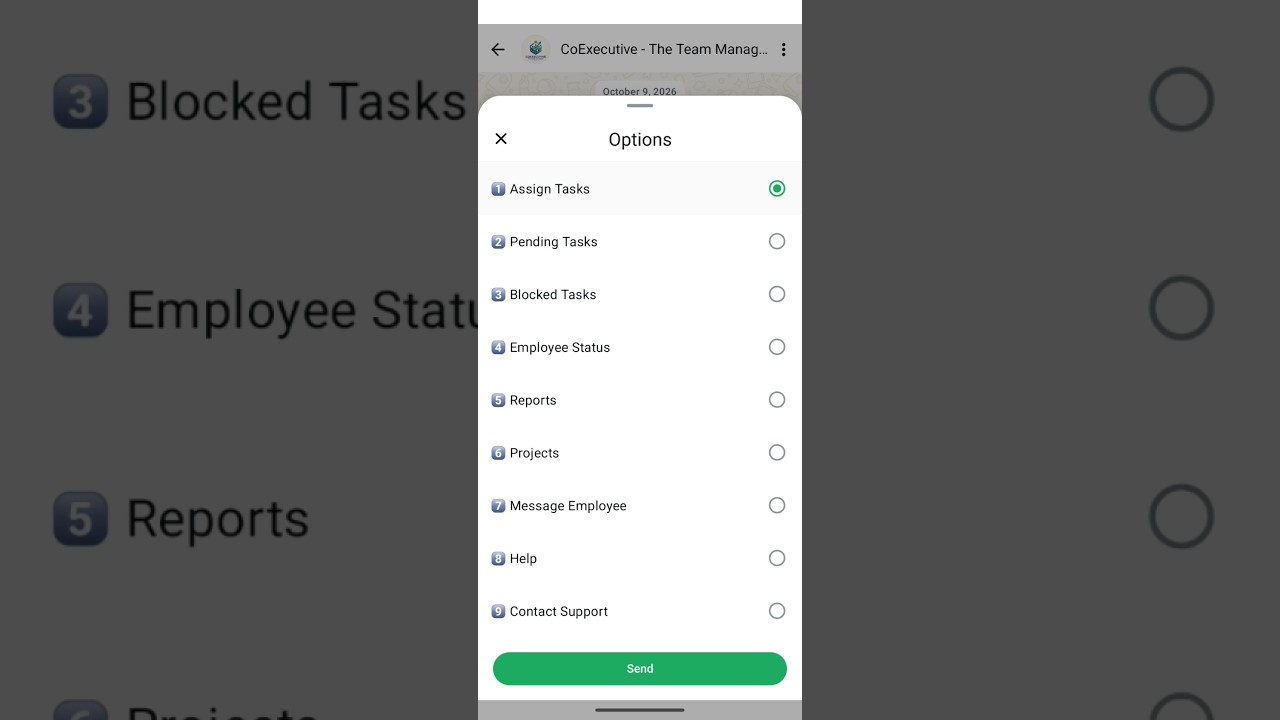
To prevent misunderstood instructions or missing deadlines, CoExecutive uses an interactive WhatsApp assignment form (Menu Item 1️⃣ Assign Tasks) rather than free-text chat guessing. Every task you dispatch is guaranteed to have a clean title, assignee, project, and due date.
Walkthrough: Assigning Your First Task on WhatsApp
1:15 • Mobile WalkthroughStep-by-Step: Assigning a Task
1. Open the CoExecutive WhatsApp Agent
Open the WhatsApp chat that CoExecutive initiated with your registered founder number when you signed up. Send Hi (or Menu) to bring up the Founder Menu.
2. Select 1️⃣ Assign Tasks
Tap Open Founder Menu, choose 1️⃣ Assign Tasks, and tap Send. The WhatsApp Agent replies with an interactive Assign Tasks button that launches the structured assignment form right inside WhatsApp.
3. Fill Out the Interactive WhatsApp Form
Inside the WhatsApp form:
- Employee: Select the team member from your roster dropdown.
- Project: Choose
General(selected by default) or pick one of your custom projects. - Task Details & Deadline: Enter the task description and select the due date and time.
- (Optional) Fill out additional task slots (up to your configured Task Slots limit, default
10) if you want to assign several tasks at once.
4. Submit & Instant Dispatch
Tap Submit. The CoExecutive WhatsApp Agent immediately:
- Sends you a confirmation receipt showing the assigned task and due date.
- Messages the assigned employee on WhatsApp with the task details and an interactive Acknowledge button.
- Logs the task in your Founder Web Portal with the status
Awaiting Acknowledgement.
Watching Real-Time Status in the Web Portal
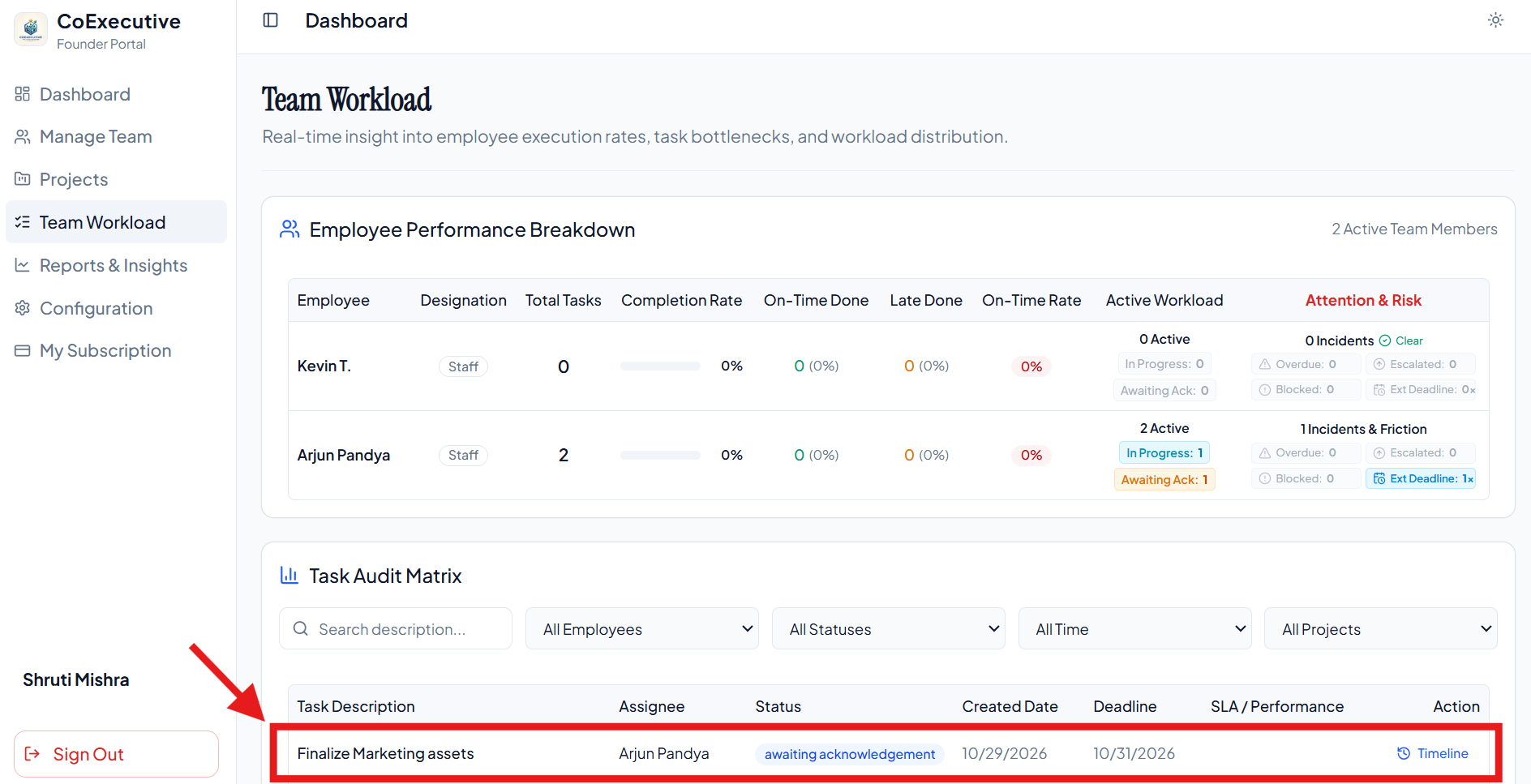
As soon as you submit the WhatsApp form, open Team Workload (/analytics) or Dashboard (/dashboard) in the Founder Web Portal:
- The task appears immediately in the Task Audit Matrix under
Awaiting Acknowledgement. - The moment your employee taps Acknowledge on their phone, the portal status badge updates to
Acknowledged / In Progressand you receive a confirmation on WhatsApp.
Employee Guide: What Your Team Needs to Know
Now that your first task is out, share the Employee Guide with your team so they know how to acknowledge tasks, report progress, and flag blockers on WhatsApp.
A short, shareable guide written specifically for your employees—no portal login required.