
The CoExecutive Nudge & Escalation Engine
Deep dive into how CoExecutive automates acknowledgement reminders, daily employee check-ins, blocker alerts, and deadline escalations.
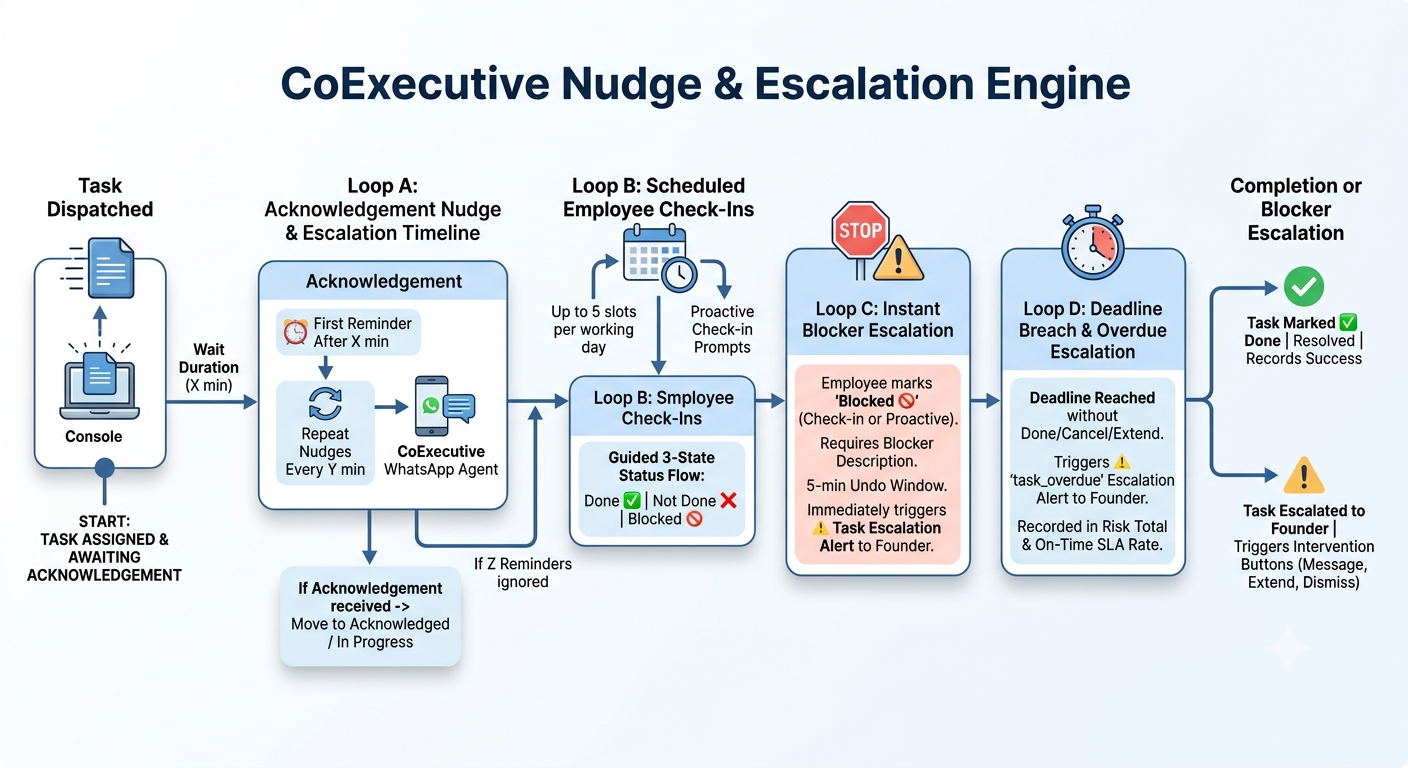
The core promise of CoExecutive is that you assign work once, and the system handles the chasing. Behind the scenes, the CoExecutive Nudge & Escalation Engine tracks every task through four automated loops—respecting your company timezone and working days at every step.
1. Working-Day & Timezone Guardrails
Before dispatching any automated reminder, check-in, or summary, CoExecutive evaluates your Schedule & Timezone settings in Configuration (/company-configurations):
- Timezone Alignment: Every timer and scheduled job runs in your configured company timezone (defaults to
Asia/Kolkata (IST)). - Working-Day Enforcement: Scheduled check-ins, morning prompts, and evening summaries execute only on the days toggled active in your Working Days bar (
Mon–Sun). Off-days remain completely quiet for your team.
2. Loop A: The Acknowledgement Nudge & Escalation Timeline
When you assign a task via 1️⃣ Assign Tasks, the task starts in the Awaiting Acknowledgement state. If the employee does not immediately tap Acknowledge on WhatsApp, CoExecutive runs a three-stage countdown:
Stage 1: Initial Grace Window (First Reminder After)
CoExecutive waits for your configured First Reminder After duration (30 min, 1 hour, 2 hours default, 4 hours, or 8 hours).
- If the employee taps Acknowledge within this window, the task moves to
Acknowledgedand no reminder is sent. - If the timer expires without acknowledgement, Reminder #1 is dispatched to the employee on WhatsApp.
Stage 2: Repeating Nudge Interval (Reminder Gap)
As long as the task remains unacknowledged and the reminder count is below your escalation threshold, the CoExecutive WhatsApp Agent waits for your configured Reminder Gap (30 min, 1 hour, 2 hours default, or 4 hours) before sending the next reminder.
Stage 3: Founder Escalation (Escalate After)
Once the employee has ignored the maximum number of reminders configured in Escalate After (1 to 5, default 3 reminders):
- CoExecutive stops nudging the employee so their chat is not spammed.
- The task is flagged for escalation and an immediate ⚠️ Escalation Alert is delivered to the founder's WhatsApp with quick buttons to Message Employee, Extend Deadline, or Dismiss.
3. Loop B: Scheduled Employee Check-In Prompts
Once an employee taps Acknowledge, the task enters active execution (Acknowledged / In Progress).
Instead of waiting until the deadline has already passed to discover a delay, CoExecutive proactively checks in with your team at your configured Employee Check-in Times (up to 5 time slots per working day):
- Smart Filtering: Only employees who currently hold open, acknowledged tasks receive a check-in prompt. Employees with zero active tasks are never messaged unnecessarily.
- Guided 3-State Status Flow: The employee updates each task as Done ✅ (with an optional completion note), Not Done ❌ (with a required reason), or Blocked 🚫 (with a required blocker description), followed by a 5-minute Undo grace window before founder notifications or escalations are dispatched.
4. Loop C: Instant Blocker Escalation
Whenever an employee marks a task as Blocked 🚫 (either during a scheduled check-in or proactively via Employee Menu Item 2️⃣ Update a Task):
- The CoExecutive WhatsApp Agent requires the employee to enter a blocker description explaining what is holding up the work.
- The employee receives a confirmation message with a 5-minute
Undobutton in case they tapped Blocked by mistake. - The task status transitions to
Blocked, and CoExecutive dispatches a ⚠️ Task Escalation Alert to the founder's WhatsApp containing the task title, assignee name, and blocker reason—with interactive buttons to Message Employee, Extend Deadline (which transitions the task toIn Progress), or Dismiss.
5. Loop D: Deadline Breach & Overdue Escalation
If a task reaches its scheduled Deadline without being marked ✅ Done (and without being cancelled or extended):
- The task automatically triggers a
task_overdueescalation alert delivered to the founder's WhatsApp with buttons to Message Employee, Extend Deadline, or Dismiss. - The breach is recorded in the employee's Risk Total and On-Time SLA Rate inside Team Workload (
/analytics) and Reports & Insights (/reports). - The task also appears in the founder's evening summary so it can be completed late, reassigned, or granted a formal deadline extension.